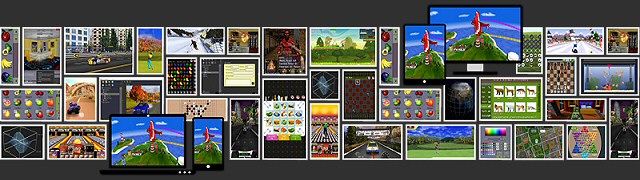
The best way to jumpstart cross-platform application development with Pooka SDK® is studying on the sample projects. Pooka SDK® provides more than 100 sample projects, categorized by skill level. Each sample project covers one or few specific technical area or features of the SDK.
Following is the folder structure of sample project directory, can be found at [SDK Root]/Samples.
Each individual sample project is stored in a dedicated directory. The project directory is location-independent, which means you can put it any where in host computer (as long as the location not exceed the path limit for certain compiler, like GCC or CLang/LLVM)
If you prefer a all-in-one workspace (XCode) or solution (Visual Studio) FILE contains all sample project, you can find them under directory [SDK root]/Samples/Workspace_AllProjects.
All sample projects are generated by Pooka SDK® project creator, therefore its directory structure a directory with strict folder structure that works with Pooka SDK® and recommended development IDEs. See Using Pooka Project Creator for more details.
The following chart shows the recommended integrated development environment (IDEs) you can use to build sample projects. There are other alternative development tools and IDEs that you can use, but it requests certain amount of work effort to manually customize the projects to make the sample project built.
| Host OS | Windows 10 64-bit (1607 or above) | macOS X (10.12 sierra or above) |
|---|---|---|
| Recommended IDE | 
2017 (version 15.5) | 
XCode 9.x |
| App. Target OS | Windows desktop App Windows UWP App Android App | macOS App iOS App |
Note Development Environment Setup
Developers need to set up their computer or IDE to be able to build Pooka SDK® projects, refer to Development Environment Setup for more details.
Note Upgrading Sample Projects
When a sample project is opened by an IDE with the version higher than the one it was created, the project should be either upgraded or modernized to conform to the newer build tools and platform SDK. For example, when a sample project for Visual Studio 2015 is opened by Visual Studio 2017, an one-way upgrade dialog is shown to help you upgrade the project for Visual Studio 2017. When a sample project for XCode 8.x is opened by XCode 9.x, there might be numbers of modernization issues listed in the issue navigator, click "Perform Changes" to modernize the project.